One artwork collection with randomized or ordered 1/1 mints.
Create or import a Manifold ERC721 contract, wrap it with phase-based minting, allow lists, hosted mint pages, widgets, admin tools, reports, and optional randomized metadata assignment.
Example
Upload 50 finished artworks, set supply to 50, create an allow-list phase followed by a public phase, then publish one mint page where each collector mints a unique 1/1 from the collection.
Multiple assets, each with its own edition size, in one grid mint page.
Create a new Manifold ERC721 numbered-edition or ERC1155 true-edition collection. Each asset can have its own edition size, default price, and phase prices, with shared phases and allow lists layered across the grid.
Example
Upload 8 works where one asset has 5 editions, another has 25, and another has 100; set asset-specific prices, run allow-list and public phases, then let collectors choose from the grid. Or upload 12 assets with edition size 1 to launch a clean grid of 1/1s from the same factory.
Instant-reveal chance mints from up to 50 unique assets.
Create or import a Manifold ERC721 or ERC1155 collection, upload a finite draw pool, set one price per phase, and let collectors mint one or more random confirmed items based on their allocation.
Example
Upload 12 unique works where one rare item has 3 editions, a few mid-tier items have 25 each, and a poster has 300. Run allow-list and public phases with shared limits; every mint instantly reveals which available item was drawn.
1/1/X Mint Factory
Create a Manifold-compatible mint wrapper, then launch a hosted page or embeddable widget.
Network
Ethereum Mainnet
Wallet
--
Standard Contract
This Studio uses the standard, audited Manifold ERC721 Creator contract.
Your wrapper mints through a Manifold Creator Core. If you already have one, paste it in the next screen. If not, the Studio can collect the details needed for a new Manifold 721 collection flow.
What this means
The base NFT contract remains the familiar Manifold 721 contract. 1/1/X Mint Factory adds the sale wrapper, allow lists, mint surface, and creator admin experience around it.
Collection
Do you already have a Manifold contract to use?
Paste a Manifold ERC721 Creator contract owned by your connected wallet.
The connected wallet will own the new Manifold collection. This avoids asking creators to manage a separate collection-owner address.
Wrapper
Configure the wrapper for this creation.
Choose total supply, add token metadata, upload asset details, then set up phases and Allow Lists. The Manifold contract is the collection; the wrapper controls how collectors mint from it.
Direct upload is the default: upload the CSV first, then select the full asset folder. Studio checks filenames before any storage write, then writes assets and final metadata directly to Irys / Arweave before launch. IPFS URL remains available for creators who want their own gateway or pinning plan.
Upload a 1xStudio template or marketplace metadata CSV.
After the CSV loads, select the full folder containing those asset files, including images, video, audio, GLB, or GLTF.
Studio validates the selected folder against the CSV and estimates permanent-storage stages before upload.
Clears the selected CSV, matching folder, staged upload progress, and saved permanent-storage URI.
Deploy the Manifold 721 collection from this connected wallet, then verify the source on Etherscan.
Waiting for collection setup.
Create or verify a collection first.
2
Deploy & Verify Wrapper
The connected wallet creates the wrapper contract for this mint, then the source can be verified on Etherscan.
Verify the contract first.
Create the wrapper first.
3
Create Permanent Storage
Permanent storage protects the artwork links so you do not have to keep the original IPFS folder pinned forever or risk empty images on marketplaces later.
Expect a few wallet prompts: a gas-free Irys upload authorization, Irys funding if your storage balance is short, and a final on-chain metadata attachment. The Studio prices the final bundle before funding, but storage pricing or balance timing can still require an extra top-up. Unused Irys balance remains available to the same wallet.
Create the wrapper first.
Wallet Actions
4
Approve Extension Registration
The collection owner approves the wrapper as a Manifold extension so it can mint tokens.
Create the wrapper first.
5
Open Mint Page
Preview the page anytime. Open the live mint page after registration.
Live mints, completed drops, and upcoming launches across 1xStudio.
Global drops across the platform.
Display type
Loading public mint feed.
Upcoming launches will appear here after they are published.
Leaderboard
Top creators, collectors, curators, starred profiles, hearted drops, and Mint Factory Used referrals across 1xStudio.
Creators
Creators rank by published drops, then minted count, then unique collectors.Your connected profile appears below if it is outside the visible top 15.
Collector rankings will appear after mint receipts sync.
Drafts
Saved launch drafts in progress.
Saved launch drafts will show here.
My Reports
Fresh creator reports for drops, collectors, curators, and earnings.
Drop Selection
Choose one or more drops you created. Leave all selected for a full creator report.
Choose a report type and download a fresh CSV.
Admin
Update mint phases, allow lists, metadata, payouts, ownership, and creator reports from the wallet that controls the wrapper.
Contract typeAll
Published wrappers
Open owned wrappers for admin tools. Created and Owned lines show which wallet controls each mint.
Selected Wrapper
No wrapper selected
Choose a creation from Admin Home.
Collector Export
Download minter wallet counts
CSV uses onchain mint events for wallet and mint count. Optional X handles appear only when collectors choose to share them.
Add Rows
Add wallets to this phase
Replace
Replace the phase allow list
Upload one or more CSVs to generate a new root for this phase.
Automatic defaults
Save Defaults rebuilds this phase from saved CSV rows plus the selected defaults, then updates the phase root. Choose Platform for global rankings or My for this creator's own activity.
Automatic defaults refresh when you save them.
Exclude
Exclude wallets from this phase allow list
Optional: upload wallet CSVs to remove from this phase allow list.
Choose the asset to airdrop. Single and batch airdrops below use this selected item.
Bulk
Batch admin airdrop
Paste up to 100 wallet,amount rows. For larger lists, upload a CSV. Prepare the transaction plan first; Studio will show simulated chunks and failed rows before asking for any wallet signature.
Optional: upload a wallet,amount CSV for larger airdrops.
Enter a token ID from the Manifold collection. ERC-721 burns the owned token; ERC-1155 burns 1 edition from the connected wallet balance. The base contract must support token burning.
Funds
Available funds
-- ETH
Funds shown are creator mint proceeds in the wrapper. Platform mint fees are handled separately and do not appear here.
Treasury
Withdrawal wallet
Mint Controls
Pause or resume collector minting
Use this when you need to temporarily stop minting from this wrapper. Resuming only reopens minting when the phase timing, supply, allow-list, and other mint rules allow it.
Mint Page Look
Update the collector-facing page UI
These settings control the admin/listing name, public mint page skin, media, marketplace link, and feed previews.
Wrapper record
Mint page identity
Paste existing media URLs
Upload replacement media to Arweave
Mint Page URL
Update the short mint page slug
Optional. Use lowercase letters, numbers, and hyphens. 1/1/X uses /mint/your-slug; editions use /editions/your-slug; draws use /draw/your-slug.
Mint Page Notification
Add a small notice above the mint image
Optional. Use this for a short collector-facing note such as a final call, shipping update, or artist message. It appears at the top of the left mint-page section and does not cover mint controls.
Mint Page Description
Style the story over your artwork
Use the same controls as Mint Factory to update formatted text and the translucent artwork panel after publishing.
Asset Rescue
Recover tokens sent to the wrapper by mistake
Use this only for accidental ERC-20, ERC-721, or ERC-1155 transfers into the wrapper. ETH mint proceeds are handled in Funds.
Enter the asset details, then rescue to a safe wallet.
Metadata
Update the token metadata folder
Use CSV only to update traits and text while keeping the current stored assets. Choose CSV plus a replacement asset folder to upload new media too. Both paths generate a fresh metadata folder on Irys / Arweave and require the owner wallet to sign the final Base URI update. The CSV token_number column must cover every number from 1 through the wrapper supply with no gaps, so randomized mints always resolve to an existing JSON path. Latest wrappers serve minted token metadata dynamically from the wrapper; older wrappers with minted tokens cannot update those already-stored Manifold token URIs from this button.
Transfer
Move wrapper ownership
The new owner wallet will control wrapper admin actions such as phases, Allow Lists, metadata, pausing, and withdrawals. If this wrapper uses a linked Manifold Creator Core, transfer the ERC-721 core to the same wallet too so the old core owner cannot change extension access later.
Core Transfer
Move ERC-721 core ownership
This changes ownership of the Manifold ERC-721 Creator Core collection contract. Keep it aligned with the wrapper owner unless you deliberately want separate custody.
Renounce
Remove wrapper owner
Renouncing ownership permanently removes owner-only wrapper controls. This cannot be undone from the Studio.
Core Renounce
Remove ERC-721 core owner
Renouncing core ownership permanently removes owner-only controls on the base ERC-721 collection. This cannot be undone from the Studio.
Load a wrapper and connect the owner wallet to unlock admin actions.
Platform Admin
Owner-only controls for fee routing, records, and platform audit tasks.
This tab appears only after the platform owner wallet is connected. The protected Platform Admin page uses Cloudflare email verification before opening and fresh wallet signatures for sensitive actions.
FAQ
Answers for using 1xStudio.
Search by partial words. Matching answers open automatically.
Basics
What is 1/1/X Mint Factory?
It is a creator workflow for setting up a Manifold ERC-721 collection, adding a mint wrapper, configuring sale phases, and launching either a hosted mint page or a widget for your own site.
Why does Mint Factory ask me to choose a factory?
The selector keeps different mint models separate. 1/1/X Factory is for one collection of unique ERC-721 artworks. 1/X/N Factory is for edition drops where each uploaded asset can have its own edition size and price in a grid mint page.
What is 1/X/N Editions Factory?
It creates or imports a Manifold ERC-721 numbered-edition or ERC-1155 true-edition collection. You can upload multiple assets, set edition size and default price per asset, add phase-specific prices, configure allow-list phases, and publish an editions mint page where collectors mint one tile at a time.
What can I do from Home?
Home shows your wallet profile, profile link controls, clickable star and heart counts, recent activity, follow suggestions, and your mints. Your mint view can switch between My Creations and My Curations, then filter those drops by Live, Coming Up, or Completed. Follow Back All helps you quickly follow people who already followed you.
What is a wrapper?
Think of the Manifold collection contract as the artwork container, and the wrapper as the mint packaging around it. The wrapper handles sale rules, allow lists, limits, payment routing, metadata assignment, and admin controls while minting tokens into the Manifold collection.
What Manifold contract does this use?
1/1/X Mint Factory is designed around the standard Manifold ERC-721 Creator Core contract. 1/X/N Editions Factory uses Manifold ERC-721 or ERC-1155 Creator Core contracts. When you import an existing contract, 1xStudio verifies that it matches the selected Manifold contract type and that your connected wallet owns it before you continue.
Is everything audited?
The base collection flow uses the standard audited Manifold ERC-721 contract. The wrapper is separate 1/1/X mint logic, so 1/1/X Mint Factory displays wrapper source verification separately from the Manifold collection contract.
Should I use an existing contract or create a new one?
Use an existing contract if you already created the collection in Manifold and your connected wallet owns it. Create a new one if the drop needs a fresh Manifold collection contract before the minting layer is deployed.
TL;DR: Why 1xStudio
What is 1xStudio trying to make better?
1xStudio is built around the everyday needs of artists, collectors, and curators: a place to create drops, shape access, check mint eligibility, manage a mint after launch, understand collector activity, share a public profile, connect multiple wallets, discover people, and build a community graph around the art. The goal is to bring work that is usually scattered across separate tools into one cozy wallet-based home.
How does 1xStudio help artists reach collectors?
Artists get more than a mint button. Custom public profiles, Link Stacks, created and curated feeds, recent activity, profile search, follow suggestions, profile favs, follower launch notifications, optional collector X handles, referral invites, mint-page notifications, hosted mint pages, and embeddable widgets all create more paths for collectors to find the artist and stay connected after a mint.
What mint customization does 1xStudio support?
Creators can set user-defined mint phases, per-phase allow lists, phase or global exclude lists, multiple CSV uploads, optional per-phase default allow-list sources, Culture Monke holder access, top creator/collector/curator access by self or platform scope, rollover behavior, hosted pages with wallet eligibility checking, optional widgets, mint-page notifications, permanent storage choices, and randomized assignment that activates automatically in the first eligible mint.
What can creators self-manage after launch?
Admin is designed so creators do not need a custom support request for every post-launch change. From the Admin panel, owner wallets can update phases, add one wallet to an allow list, bulk-add wallets, replace a full allow list, update metadata, update mint-page media and gateways, add mint-page notifications, airdrop single or batch mints, burn owned tokens when supported, check and withdraw mint funds, update treasury, manage ownership, and rescue ERC-20, ERC-721, or ERC-1155 tokens accidentally sent to the wrapper.
What reporting do creators get?
My Reports gives creators current exports for Drops, Collectors, Curators, and Earnings, with date range and drop filters. CSV downloads can be regular reports or allow-list compatible files, so the same activity data can help with collector follow-up, future allow lists, rewards, community review, and drop planning.
How does 1xStudio help with curation and discoverability?
Discovery has Art and Users views so drops and people can be found together. Stars mark favorite profiles, hearts mark favorite drops, and those signals build public curated feeds, profile stats, leaderboards, and discovery filters. Collectors can follow taste across profiles, artists get more surfaces where their work can appear, and curators get visible credit for the role they play in discovery.
What is here for collectors?
Collectors can build their own profile, link wallets, show collected activity, follow artists and curators, fav profiles, heart drops, share a curation feed, appear on collector and curator leaderboards, check phase eligibility from generated mint pages, and earn referral codes through collecting. Those codes can be used to unlock creator access for themselves or invite someone else.
What safety and security choices are built in?
1xStudio uses the standard audited Manifold ERC-721 Creator Core for the base collection and a separate focused wrapper for mint phases, allow lists, payment routing, metadata assignment, and admin controls. The wrapper uses owner-only controls for sensitive actions, reentrancy protections on value-moving paths, source verification surfaces, built-in randomness support, Safe and hardware-wallet-compatible sign-in, primary-wallet signatures for linked-wallet changes, delegate wallet mint support, permanent storage options, and rescue controls for accidental token transfers. The wrapper is separate 1xStudio logic, so review its source and verification status separately from the Manifold core.
Why show badges and role percentages?
People rarely fit into only one box. Activity badges and role percentages let a profile show its current mix as creator, collector, and curator based on actual platform activity. That makes the social graph feel more human and helps people understand how someone participates before they follow, collect, invite, or collaborate.
Wallets & Ownership
Which wallet owns the collection and wrapper?
The connected wallet is treated as the owner wallet for creation and admin actions. It owns newly created collection contracts, controls the wrapper admin settings, and can run owner-only actions like phase edits, allow-list updates, pausing, metadata updates, and withdrawals.
What is the treasury wallet?
The treasury wallet is where creator mint funds are withdrawn. 1/1/X Mint Factory uses the connected wallet by default, and the Admin panel includes a treasury update control for changes after launch.
Why do I connect wallet and then sign a message?
Wallet connect gives the site your public wallet address. The message signature is a separate gas-free login step that proves the wallet belongs to you so 1/1/X Mint Factory can load your drafts, creations, profile, follows, and admin tools across devices. Safe wallets use standard EIP-1271 contract-signature checks.
Does Rabby mobile browser work?
Yes. On Rabby mobile, the first approval is the no-gas wallet connection. After that, the button changes to Sign Message and opens the gas-free profile/session signature prompt. If a prompt does not appear, reopen the Rabby browser tab and tap the button again.
Which wallets are supported?
1/1/X Mint Factory supports EVM wallet providers such as Rabby, MetaMask, Phantom, hardware wallets connected through those wallets, WalletConnect once configured, and Safe when opened as a Safe App. The wallet picker prioritizes Rabby, then MetaMask, then WalletConnect, and never silently forces one provider. Ownership and admin checks use the connected address, so a Safe-owned wrapper is managed from the Safe address.
Can I link multiple wallets to one profile?
Yes. Your profile can have multiple linked wallets with one primary wallet. Linked-wallet additions and removals require a gas-free signature from the signed-in primary wallet, and the current primary wallet cannot be removed. ENS names are shown when available in the format ENS name plus wallet address, and copy buttons always copy the actual wallet address.
How do I set up delegated minting?
Set up delegation on delegate.xyz. Connect the eligible vault wallet there, then delegate contract-level rights to the wallet you want to mint from. Use the Manifold Creator Core contract address when possible, or the specific 1xStudio wrapper address for that drop. On the mint page, connect the delegated minting wallet; if the vault wallet is eligible, the delegated wallet submits and pays for the claim, while the NFT lands in the vault wallet. The phase eligibility checker accepts either the vault wallet or delegated wallet, shows when access comes through Delegate, and stacks public-phase availability across the entered wallet plus delegated vaults.
What happens if I lose access to the owner wallet?
You may lose the ability to administer the wrapper or withdraw funds. Use a wallet you can safely maintain, and consider a secure multisig for higher-value launches.
Profiles & Social
What is my public user profile?
Your profile is attached to your wallet and lives in Discovery > Users. It can show a user name, image or GIF, X link, website link, short message, Link Stack, badges, social counts, collection stats, created drops, and curated drops. Profiles can be viewed without connecting a wallet, and when a wallet is connected the page shows the right Follow, Following, Fav, edit, and sign-in controls for that wallet.
How do profile links and unique names work?
Your saved profile gets a public link that can be copied from My Profile. User names are unique, case-insensitive, and trimmed; spaces stay visible in the user name but become dashes in the public profile link. If a name is already taken or reserved, the field highlights before save so you can choose a different one.
What is Link Stack?
Link Stack lets you add public links to your profile with labels, icons, notes, optional images, and expanded tiles. You can add, remove, reorder, and resize links from My Profile or from your Discovery profile edit mode. Saved Link Stack changes update on the profile without needing a page refresh.
What do the profile stats count?
Following and Followers count social follows. Collectors counts unique wallets that minted your published drops. Collected shows your total NFTs collected through 1xStudio and the unique artists those mints came from. Drops counts your published Mint Factory drops. Star and heart counts show profile favs and drop hearts, update after signed actions complete, and open the people list with follow controls when clicked. The wallet copy icon copies the profile wallet address.
Can I view or edit my profile before sharing it?
Yes. My Profile has View Profile to open your Discovery profile in normal view and Copy Profile Link to copy your shareable profile URL. If you are viewing your own profile, Edit Profile opens edit mode so you can update profile info and Link Stack, then Save Page returns the profile to normal view. If you try to leave My Profile with unsaved changes, 1xStudio asks whether to stay and save or leave without saving. If the active wallet changes during edit mode, unsaved edits reset and the page asks the new wallet to sign in before owner-only controls appear.
How do profile save and error messages work?
Field-specific issues appear below the field and also show as a temporary screen-bottom popup. Profile saves show a success popup, image uploads show upload progress during save, and upload problems change into the actual error message instead of staying in a waiting state.
How do profile images work?
You can upload a PNG, JPG, WebP, AVIF, or GIF up to 25 MB, or provide a CID, IPFS link, gateway link, or public URL. Static images are resized before upload, GIFs stay animated within the same cap, and MP4 profile media is not supported.
What do profile badges mean?
Profiles can show Creator, Collector, and Curator badges based on platform activity. One published drop adds creator credit, one minted NFT adds collector credit, and one profile fav or drop heart adds curator credit. The activity mix uses those simple counts to show the profile's current role balance. Creator badges can also show who invited that user when the profile joined through a referral.
Why do I need a referral code for Mint Factory?
Mint Factory creator access is referral-gated so the creator network can grow with more trust and less spam. Enter a valid single-use code in Profile to unlock creation tools. Earned codes can unlock your own creator access or be shared with someone else. If you are unable to find a referral code, reach out to 1xHarsh on X.
How do I get more referral codes?
Earned codes can unlock your own creator access or invite someone else. Collectors receive 3 codes when they collect their first piece, then 2 more for every 0.5 ETH spent collecting after that. Creators also receive 3 codes when a Mint Factory collection they create reaches 5 mints, 5 more at 55 mints, then 5 more for every 100 mints after that, up to 30 codes per collection. Referral leaderboard counts Mint Factory Used only after another invited wallet uses a code and creates a verified mint. Referral rules are subject to change without prior notice, and referral bonuses are not guaranteed.
Can I see who joined with my referral codes?
Yes. My Profile includes My Codes and Invited Profiles. Used codes show the invited wallet, and when that person saves a profile name, their profile name appears against the code so you can see who joined through your invite.
Can I see who follows me or collects my work?
Yes. Click Followers, Following, Collectors, Stars, or Hearts on a profile to open the wallet list. From there you can open profiles and follow or unfollow users. Collector count is based on unique wallets that minted that user's published works through the platform.
How does follow and unfollow work?
Follow adds that user to your following list and can be used to filter Discovery Art. If you already follow someone, the button shows Following with a green check; clicking it unfollows them.
What shows in Recent Activity?
Recent Activity shows the latest public mints and follows related to the profile you are viewing. It loads up to 50 recent items, shows about five rows before scrolling, and can be filtered to Both, Mints, or Follows. Profile names in activity rows open that user's Discovery profile, and signed-in wallets see compact follow buttons when the activity includes someone they do not follow yet.
What shows in Notifications?
After you connect and sign in, the bell shows unread in-app notifications for social activity such as follows, profile favs, drop hearts, mints, and launch notices from creators you follow. Opening the panel shows the newest items with profile and mint-page links, then clears the unread count for the items displayed.
How do Follow Suggestions work?
Suggestions show profiles you do not already follow, including people who follow you so you can follow back. 1xHarsh is recommended first when eligible, then suggestions prioritize profiles with the most mutual follows and fill with newer accounts when the mutual graph is still small. Follow Back All follows only eligible followers you have not followed back yet, while Follow All follows the visible suggestions and refreshes the list.
What is Discovery?
Discovery is public and works even without wallet connect. Art lets you browse live, upcoming, and completed mints, search by art, user, wallet, drop name, or contract, and filter by All, Following, Network, or Favorites when signed in. Users lets you search profiles by user name, slug, X handle, or wallet, and opens the same public profile view used by shareable slugs. Signed-in wallets also get a My Profile shortcut.
What is the Leaderboard?
Leaderboard has Creator, Collector, Curator, Stars, Hearts, and Referrals views with time filters for Today, This Week, This Month, This Year, All Time, and custom ranges. Creators rank by published drops, minted count, and unique collectors. Collectors rank by tracked ETH spent, NFTs collected, and unique artists collected; ETH spent excludes gas. Collectors and Curators can also be filtered by one or more creators. Stars ranks profiles by current fav count, Hearts ranks drops by current heart count with drop status, minted/supply, and live eligibility details, and Referrals ranks Mint Factory Used creator referrals.
Can I share my curated fav feed?
Yes. Your Discovery profile slug, such as 1xstudio.xyz/your-name, shows your created mints and a public curation feed built from profiles you marked as fav plus individual drops you hearted. A drop appears in your curation when you heart the drop or fav the creator. It is removed as soon as neither rule is true, or when you explicitly Exclude it. Excluding a drop also removes your heart, and hearting that drop again includes it again by clearing the exclude override. Home, Discovery, and public views refresh these curation changes without a page reload.
Do stars, hearts, follows, and curations update without refreshing?
Yes. When a signed action completes, the visible counts, follow states, curation tiles, and loaded leaderboard rows update in place. If an action takes a few seconds, 1xStudio shows a working state so you know the click is still being processed.
What do mint cards show?
Mint cards use one universal drop tile across Home, Discovery, profiles, and curation feeds. The tile highlights the art, status, chain, creator, title, minted/supply, collectors, heart count, OpenSea shortcut, Open button, creator Follow or Following control, and Fav state. For live or upcoming drops, signed-in wallets also see eligible phases or Not Eligible. In editable curation views, Exclude removes a drop from your curation override list.
Can I save profile preferences?
Yes. My Profile saves your private email field, feed defaults, and notification choices with your wallet profile. Feed defaults can open Discovery Art to everyone, people you follow, or fav accounts only.
Fees & Costs
Who pays what?
Collectors pay mint costs (price + gas) and the platform mint fee. Creators pay launch/admin gas and permanent storage fees when they create the collection, deploy the wrapper, upload permanent metadata, or update admin settings.
What is the platform fee?
1/1/X Mint Factory charges a flat platform fee of 0.00042 ETH per token at mint time.
Who pays the platform fee?
The minter (collector) pays the platform fee directly in the mint transaction with each token they mint.
Why do wallet prompts appear during launch?
Some prompts are paid transactions, such as deploying a contract or attaching the final metadata URI. Other prompts are gas-free signatures used by storage providers. The launch step explains why each wallet action is needed before the wallet opens.
Why does Admin Funds only show creator proceeds?
Creator mint proceeds accrue in the wrapper and are withdrawable by the wrapper owner to the treasury wallet. Platform fees are separate from creator proceeds and do not appear in this balance.
Permanent Storage
Why is permanent storage recommended?
Permanent storage protects the final artwork and token metadata links so collectors, mint pages, and marketplaces are not depending on a temporary local folder or a creator-managed IPFS pin forever.
Who pays the permanent storage fee?
The creator pays permanent storage fees from the connected wallet during launch, or later from Admin when updating or converting metadata storage. The cost depends on file size, generated metadata size, and the storage provider price at that moment. The Studio prices the final upload bundle before funding, but provider price or balance timing can still require an extra top-up. Unused Irys balance remains available to the same wallet.
Can I skip permanent storage?
In IPFS URL mode, yes. Permanent storage is strongly recommended, but the launch flow can continue from creator-managed IPFS links. In Direct Upload mode, permanent storage is required before wrapper deployment because 1xStudio does not temporarily host those asset files for launch. If an IPFS launch skips permanent storage, set or convert metadata later in Admin before relying on the live mint page long term.
Why can permanent storage need more than one wallet prompt?
Direct Upload can process assets in permanent-storage stages of up to 1 GB or 500 files each, and each stage writes directly to Irys / Arweave. Permanent storage can involve a gas-free Irys authorization, one or more funding transactions when the wallet's Irys balance is short, generated metadata upload, and a final on-chain transaction to attach the metadata URI. The launch step shows each wallet action with a reason so creators know what they are approving.
Do I need to upload assets to IPFS first?
No. Direct Upload is the default: upload the CSV first, select the full matching asset folder, and 1xStudio writes the assets plus generated token metadata directly to Irys / Arweave before launch. IPFS URL mode remains available for creators who want their own pinning provider, gateway, limits, or storage plan.
How does permanent storage via Direct Upload work?
Direct Upload starts with the metadata CSV, then asks you to select the full asset folder. 1xStudio checks that the folder filenames match the CSV before any permanent-storage write. Matching assets are uploaded from the browser directly to Irys / Arweave in stages of up to 1 GB or 500 files each; each completed stage is saved to the draft checkpoint with its Arweave transaction details, so a cancelled wallet prompt, failed upload, or later refresh can resume from the last completed stage after you reselect the same folder. After all asset stages finish, 1xStudio generates and uploads the final token metadata JSON, then the owner wallet signs the onchain Base URI update. Clear All + Start Over clears the selected CSV, matching folder, staged progress, and saved permanent-storage URI, then autosaves the cleared draft.
Do I have to use Pinata?
No. Pinata is only one IPFS option. Any IPFS provider works as long as the folder is public, pinned, and the asset filenames match the CSV. You can also use Direct Upload and skip IPFS setup entirely.
Do I need to keep the original IPFS folder pinned forever?
If permanent storage is created and attached to the wrapper, collectors load the permanent links. Keeping an IPFS source folder pinned is still a good archive practice for IPFS-sourced drops, but permanent storage removes long-term dependence on that source folder.
Does Direct Upload store my files on 1xStudio servers?
No. Direct Upload reads files in the browser, checks them against the CSV, and uploads directly to Irys / Arweave. 1xStudio saves draft checkpoints, stage status, and public creation records, but it does not store the asset bytes in Workers, D1, or R2 for this flow.
Metadata & Files
What metadata CSV format is supported?
1/1/X Mint Factory supports the 1xStudio metadata template and compatible token metadata CSVs with token names, descriptions, asset filenames, and traits. Template trait columns start with trait_, for example trait_Job Category. Studio strips that prefix in the final JSON and preserves the original casing after it, so marketplaces see the trait name as Job Category. Image files become the token image; video, audio, GLB, and GLTF files become animation_url. For 3D tokens, add a separate image column if you want marketplaces and Studio cards to show a thumbnail before opening the model. During launch or Admin metadata updates, each row is converted into the individual JSON metadata files needed for minting. If the CSV format is wrong, the error names the exact header, row, and column to fix where possible, such as a missing media_filename, duplicate token_number, extra cells from an unquoted comma, or an unclosed quote.
Do I need to include external URLs in the CSV?
No. 1/1/X Mint Factory derives asset links from the CID or IPFS link you enter, so the CSV only needs token metadata and asset filenames.
Can I paste a full IPFS link instead of just the CID?
Yes. The CID field accepts a raw CID, an ipfs:// link, or a gateway URL and normalizes it before checks run.
What happens if asset filenames do not match the IPFS folder?
1/1/X Mint Factory blocks the next step and shows a clear error. Fix it by renaming files, updating the CSV filenames, or using the correct IPFS folder CID, then run the check again.
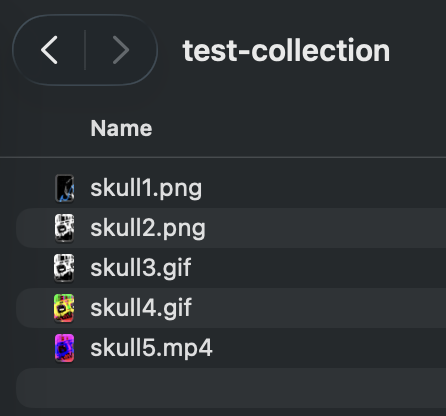
1
IPFS folderFiles like skull1.png.
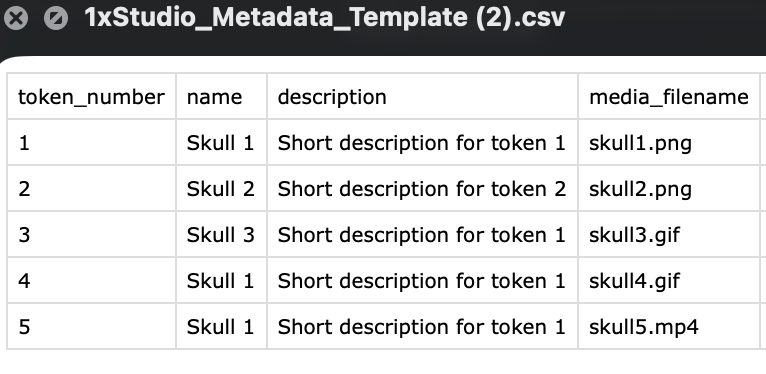
2
Metadata CSVMatching media_filename values.
The highlighted CSV values must match the highlighted folder file names exactly, including extension.
What if total supply does not match the metadata row count?
1/1/X Mint Factory flags the mismatch because every token needs metadata. You can either update the supply to match the uploaded metadata count or upload a CSV with the correct number of rows. The token_number column must also cover every number from 1 through total supply with no gaps and no numbers above supply; this matters especially for randomized drops because any metadata slot in that range can be drawn.
If randomness is on, are admin airdrops randomized too?
Yes. Randomized drops use the same remaining asset pool for collector mints and Admin airdrops, so Admin Mint and batch airdrops receive randomized token metadata. Randomized assignment activates automatically in the first eligible mint after its brief readiness window—there is no creator reveal transaction. The recipient list and quantities are not randomized, and admin airdrops do not consume phase allow-list spots; only the assigned token assets are randomized.
Phases & Allow Lists
What is a mint phase?
A phase is a time window with its own price, wallet limit, and access rule. For example, you can create an allow-list phase first and a public phase after it.
How do phase times work?
Duration is calculated from start and end times. If you edit duration, the end time updates. 1/1/X Mint Factory keeps phases sequential and non-overlapping, and reordering keeps the timing slot logic easy to follow.
How does max per wallet work with allow-list amounts?
Set a default max per wallet for the phase. In allow-list phases, an amount in an uploaded CSV overrides that default for that wallet. Example: if max per wallet is 1 but wallet abc has amount 3 in the CSV, wallet abc can mint 3.
Can I mint with a delegated wallet?
Yes, for new delegate-aware wrappers. If your vault wallet is on the allow list and it delegated access through Delegate V2 to the connected minting wallet, the mint page checks that delegation at mint time. The vault wallet's allowance is consumed, and the NFT lands in that eligible vault wallet.
Can collectors check wallet eligibility before minting?
Yes. Generated mint pages include a phase eligibility checker where anyone can enter a wallet address, ENS name, or saved X handle and see current phase access before connecting. It reads the latest saved allow-list data plus current onchain phase settings, minted counts, remaining supply, and phase status, so Admin allow-list and phase updates are reflected when the check runs.
What does "use same allow-list for all phases" do?
It lets you upload one or more CSVs once and apply the same wallet list across every allow-list phase, instead of uploading a separate CSV for each phase. You can also upload multiple CSVs for a phase one after another; 1/1/X Mint Factory combines them before generating the final root.
Can I include Culture Monke holders automatically?
Yes. In Phases and Allow Lists, check Include Culture Monke holders. 1/1/X Mint Factory fetches the current holder wallets from Etherscan and adds them to any uploaded allow list. If a holder is already in your CSV, the uploaded allowance stays unchanged; missing holders are added with allowance 1.
Can I auto-add top 1xStudio creators, collectors, or curators to an allow list?
Yes. In each allow-list phase, choose optional defaults like Culture Monke holders, Top creators, Top collectors, or Top curators, then set how many wallets to include. Each leaderboard default can use your own creator scope or the full platform scope. Selected defaults refresh from current holder data and leaderboards before launch validation and are added only to that phase's allow-list package.
What happens when the same wallet appears in multiple allow-list sources?
Uploaded or manually entered AL rows use the AL duplicates setting. With No stack, latest amount wins, the newest row or uploaded file controls the final amount: 0xabc,1 followed by 0xabc,3 becomes allowance 3. With Stack amounts, those same rows become allowance 4. Automatic defaults use their own Default duplicates setting: No stack only adds missing wallets, while Stack overlaps adds +1 for each selected default source the wallet qualifies for.
Can I exclude wallets from an allow list?
Yes. The mint creation flow and Admin allow-list tools include optional exclude-list uploads. Excludes can be phase-specific or global, and are applied after uploaded rows and automatic defaults so excluded wallets cannot use that allow-list access.
What does rollover unused allow-list spots mean?
If enabled, unused allowance from earlier phases can carry into the next eligible phase. This helps collectors keep access if they missed an earlier window.
Launch & Verification
What happens during launch?
1/1/X Mint Factory walks through the required actions in order. For new collections, the first launch row deploys and verifies the Manifold contract. The next row deploys and verifies the wrapper. After that you create or skip permanent storage, attach final metadata when available, register the extension, and publish the mint page.
What happens when I import an existing Manifold contract?
Paste the existing ERC-721 Creator Core address and click Verify. 1xStudio checks that the connected wallet owns the contract and that the contract matches a compatible Manifold runtime before allowing wrapper creation. If the contract was created moments ago, wait a few seconds before checking again so chain and Etherscan data can catch up.
Does Etherscan verification need a wallet transaction?
No. Deploying a contract needs a wallet transaction, but Etherscan source verification is an API submission and status check. The Verify button shows submission progress and changes to Check Status while Etherscan processes the request.
Why is wrapper source verification its own step?
The wrapper is a separate deployed contract, so its source code is verified separately from the Manifold collection contract. Wrapper verification runs independently and does not block storage or mint page setup once the wrapper itself is deployed.
How do I confirm Etherscan verification was submitted?
1/1/X Mint Factory shows an Etherscan reference after submission. You can use Check Status, copy the reference for support, or open the contract on Etherscan to confirm whether the source code is published.
Why can verification take a while?
Etherscan queues verification requests and sometimes returns delayed status updates. After Verify is submitted, use Check Status to poll for completion. If the status is still not green after a short wait, the launch row shows Re-verify so you can send a fresh request.
Which chain should I use?
Ethereum Mainnet is the only supported chain for 1/1/X Mint Factory launches.
What do I confirm before publishing?
Confirm the connected owner wallet, collection contract, CSV and IPFS checks, mint page preview, allow-list behavior, permanent storage choice, Etherscan verification, and mint behavior before sharing the public mint page.
Can I notify followers when I publish a mint page?
Yes. When you publish, 1xStudio asks whether to notify followers. If selected, followers receive one in-app launch notice with links to your profile and the mint page, and your public recent activity shows that you created the drop.
Does each creation get a new wrapper?
Yes. Each new launch deploys its own wrapper contract. That keeps each creation's phase rules, metadata, ownership, and proceeds isolated from other drops.
Mint Page & Widget
Should I choose a hosted mint page or widget?
Choose hosted mint page if you want a dedicated page managed from 1/1/X Mint Factory. Choose widget if you want collectors to mint from your own website. You can choose both if you want a page and embeddable code.
Can I preview the mint page before launch?
Yes. The preview shows the look and feel, selected accent colors, timer styling, pre-reveal image, collection name, and supply progress bar even before the wrapper is live.
Where does my accent color appear?
The selected accent color is used to generate the mint page feel, including timer accents, buttons, heading treatments, and supporting colors.
Why does the mint quantity sometimes stop below the phase max?
The mint page caps quantity by the live limits that apply: remaining supply, the public phase cap or allow-list CSV amount, and how much that wallet already minted. If only one token remains, the selector only allows one.
What is the optional X handle on the mint page?
Collectors can optionally share an X handle during minting so creators can connect with them later. If the handle is entered without @, 1xStudio adds it automatically. If that wallet has already shared a handle, the mint page can prefill it for convenience.
Admin & Records
What can I do from Admin?
After selecting a wrapper, Admin lets the owner wallet review contract addresses, open the mint page, update phases, update allow lists and exclude lists, mint/admin airdrop, pause or resume minting, add an optional mint-page notification, update mint-page media and gateway URLs, check and withdraw funds, update treasury, update metadata, lock metadata, and manage wrapper ownership. Admin separates Created & Owned wrappers from Created but not Owned wrappers so you can see which drops the connected wallet can still control.
What is the difference between a Studio pause and wrapper pause?
A Studio pause disables 1xStudio hosted surfaces and creation actions. It does not block direct onchain calls to an open wrapper. If a creator needs minting stopped at the contract level, the wrapper owner should open Admin for that wrapper and use Pause.
Can I update all phases at once?
Yes. Admin shows all phases together for review and includes an Update All Phases action so the owner wallet can submit multiple phase changes in a single transaction when the wrapper supports it.
Can I update metadata storage after launch?
Yes, while metadata is not locked. In Admin > Metadata, choose a replacement CSV to regenerate token JSON and upload a fresh metadata folder to Irys / Arweave. Use CSV-only when you are changing names, descriptions, or traits and want to keep the current stored assets. Choose CSV plus a full replacement asset folder when artwork or media files also need to change. IPFS-sourced drops can still be converted to permanent storage from the saved asset source. Latest wrappers mint through Manifold with dynamic extension metadata, so the owner wallet's Base URI update changes minted token URI reads too. Older wrappers that already minted token-specific URIs need a fresh wrapper before minting or a manual Manifold migration. Once metadata is locked, the wrapper blocks further Base URI changes.
How many bulk airdrops can I run?
Pasted bulk airdrops support up to 100 wallet,amount rows. For larger lists, upload a CSV using the linked template; Studio has no CSV row cap and first attempts each 100-row group in one transaction. If a transaction cannot be simulated, Studio retries smaller groups before marking rows failed. Invalid rows are skipped, and after the run Admin shows a clear summary such as 30/30 airdrops complete or 22/30 succeeded, 8 failed. Failed rows can be opened and downloaded as 1xstudio-bulk-airdrop-failed-list.csv with wallet, amount, and reason columns.
What is the difference between Created & Owned and Created but not Owned?
Created & Owned wrappers were launched from this wallet profile and are still controlled by the connected wallet. Created but not Owned wrappers were launched from this profile but now require the current owner wallet for Admin actions.
Can I transfer or renounce ownership?
Yes. Admin includes ownership controls for the wrapper and, when supported by the Manifold ERC-721 Creator Core contract, the base collection contract. Transfers should be tested carefully; renouncing ownership is permanent and can remove admin control.
Can I burn a token from Admin?
Yes, when the base ERC-721 contract supports burning and the connected wallet currently owns the token ID. Admin checks token ownership before showing the burn action.
Can I close sold-out live mints?
Yes. Admin includes a close-out action that marks sold-out live mints as completed and closes minting even if configured phases are still live or scheduled for later.
Can I download a minter list?
Yes. Admin can export a CSV of minter wallets and mint counts for the selected wrapper. Optional X handles are included when collectors choose to share them.
What are My Reports?
My Reports gives creators current CSV exports at pull time. Report types include Drops, Collectors, Curators, and Earnings. You can filter by date range and one or more created drops, then download either a regular CSV or an allow-list compatible CSV. Allow-list compatible exports can be based on selectable metrics such as total mints or total curated activity.
How do withdrawals work?
The Funds tab can check the wrapper contract balance and show creator proceeds in ETH. The owner wallet can withdraw those proceeds to the configured treasury wallet. Platform fees are separate from creator proceeds and do not appear in this balance.
Where are My Creations?
Home shows created drops in the My Creations mint view. Admin opens on Published wrappers for owner tools, while Drafts is the second Admin view in the same page area for launches still in progress. A draft stays in Drafts until the mint page is published, and duplicating a published creation starts a fresh draft with deployment progress cleared.
Where are drafts stored?
Drafts are saved against the connected wallet so they can be resumed later from the same wallet profile. Published creation records are stored securely and indexed by wallet, collection contract, wrapper contract, and mint page status.
What happens when I duplicate a creation?
Duplicating creates a new draft with the same editable settings, but clears deployed contract steps so the next launch creates or imports a new collection and wrapper.
What data is onchain versus stored by 1/1/X Mint Factory?
Contracts, ownership, mint rules, funds, and final metadata URI live onchain or in permanent storage. Draft settings, UI preferences, helper labels, and creation records are saved to the wallet profile so 1/1/X Mint Factory can show the right drafts, published pages, contract addresses, and admin tools when the wallet connects.
Legal & Compliance
Who is responsible for legal and regional compliance?
You are responsible for checking and following the laws, rules, platform terms, tax obligations, sanctions restrictions, consumer-protection requirements, privacy rules, age restrictions, and promotional or referral rules that apply to you, your collectors, your jurisdiction, and the places where your drop is offered. 1xStudio tools do not replace legal, tax, financial, or compliance advice.
Is anything in 1xStudio legal, tax, or financial advice?
No. Information in 1xStudio is provided for product and workflow use only. It is not legal, tax, accounting, investment, or financial advice. Digital asset rules can change and may vary by country, state, region, platform, wallet, marketplace, and collector location. Speak with qualified advisors before launching, collecting, promoting, pricing, or reporting activity if those rules matter to you.
What risks should I understand before using 1xStudio?
Blockchain transactions can be irreversible, gas costs can change, markets can move, third-party services can fail, wallet access can be lost, and contract or metadata choices can have permanent effects. 1xStudio does not guarantee profits, sales, collector eligibility, marketplace display, tax treatment, uninterrupted availability, or legal outcomes. To the fullest extent allowed by law, you are responsible for your own actions, approvals, uploads, allow lists, exclusions, wallet security, contracts, and any losses or liabilities that result from your use of the platform.
Profile
People
Select a count to load people.
Unsaved Profile
Leave without saving?
You have profile changes that are not saved yet. Stay here to save them first, or leave and discard the draft changes.
Mint Page
Publish mint page?
This will make your mint page live across 1xStudio.
PhaseSet timing, price, and access.
Basics
Timing
Duration auto-fills from start and end. If you edit duration, the end time updates from the start time.
Phase dates use this browser's local time.
Price & Limits
Allow List
Upload one or more allow-list CSVs for this phase.
Optional Defaults
Add current holder or leaderboard wallets to this phase only. CSV rows stay as the base list.
Optional defaults are off for this phase.
Exclude List (optional)Upload wallet CSVs to exclude from this phase allow list.

Profile
People
Select a count to load people.